
Librarika Kiosk
A self-service kiosk for your library.
Patrons check out and return items on their own — no staff needed at the desk.
Everything patrons need, right at the kiosk
Librarika Kiosk connects to your library's SIP2 service and gives patrons a clean, touch-friendly interface to manage their own borrowing.
Self-Checkout & Self-Checkin
Patrons borrow and return items independently. Scan items one by one and get instant confirmation with due dates.
Barcode Scanner Support
Works with any USB barcode scanner in keyboard-emulation (HID) mode. No driver installation required — just plug in and scan.
Multi-Language Support
Interface can be translated for your patrons. Language coverage is not 100% and may not be guaranteed for all strings.
Auto-Logout
After a period of inactivity the session ends automatically. Patron data is cleared — the next person starts fresh.
Cross-Platform
Runs on Windows, macOS, and Linux. Use the hardware you already have — no special kiosk hardware required.
Kiosk / Fullscreen Mode
Lock the software into fullscreen for public deployment. Keyboard shortcuts are disabled so patrons cannot navigate away.
Receipt Printing
Print receipts using your system printer — including POS and serial printers. No code dependency; uses standard OS print dialogs.
Patron Status View
Patrons can see their checked-out items, overdues, and fines at a glance before deciding what to do next.
Privacy by Design
No patron passwords are stored. Session data is cleared on logout. The software does not log sensitive patron information.
See it in action
A clean, touch-friendly interface designed for public kiosk deployment.
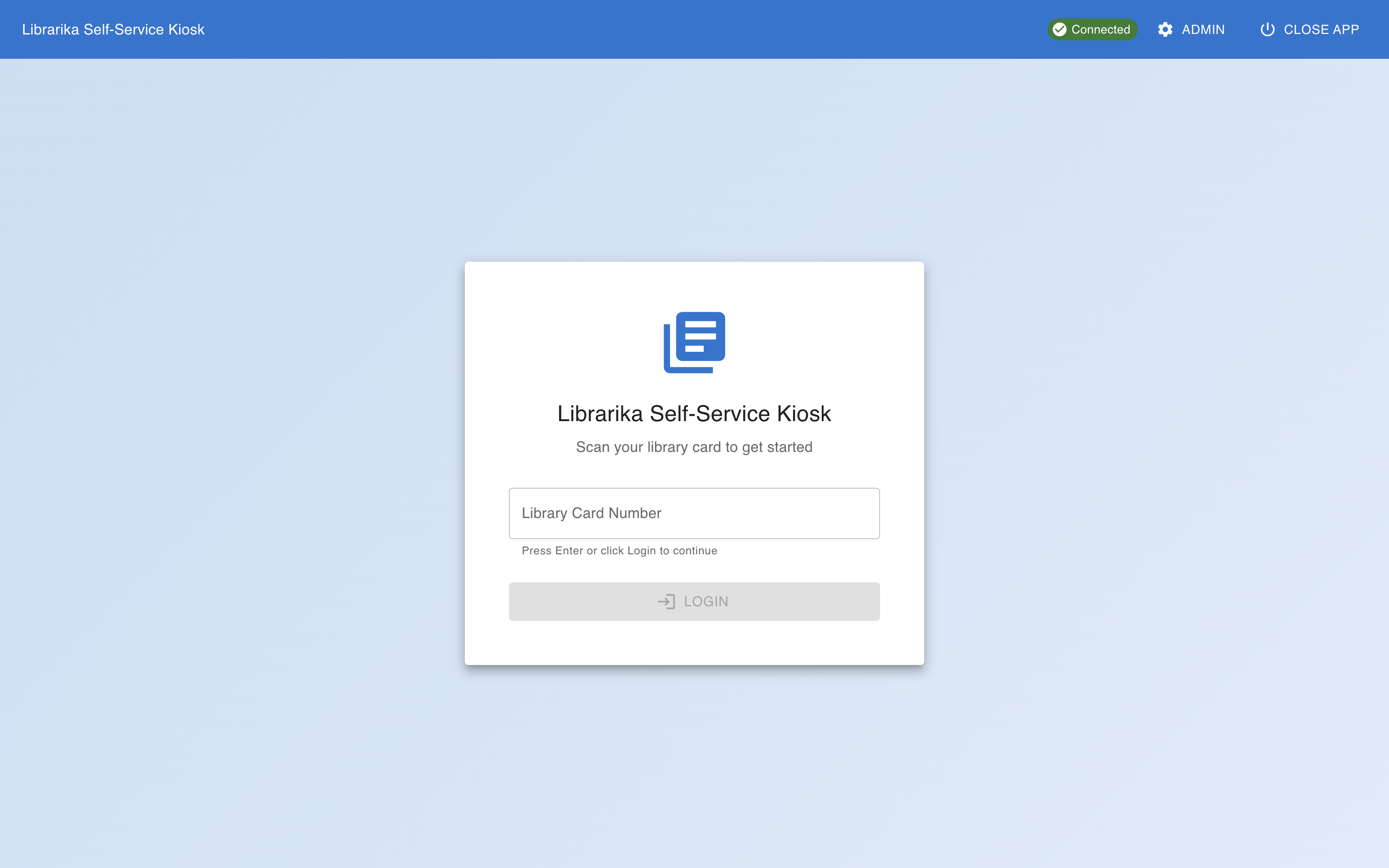
Patron Login
Scan a library card or type the number to log in.
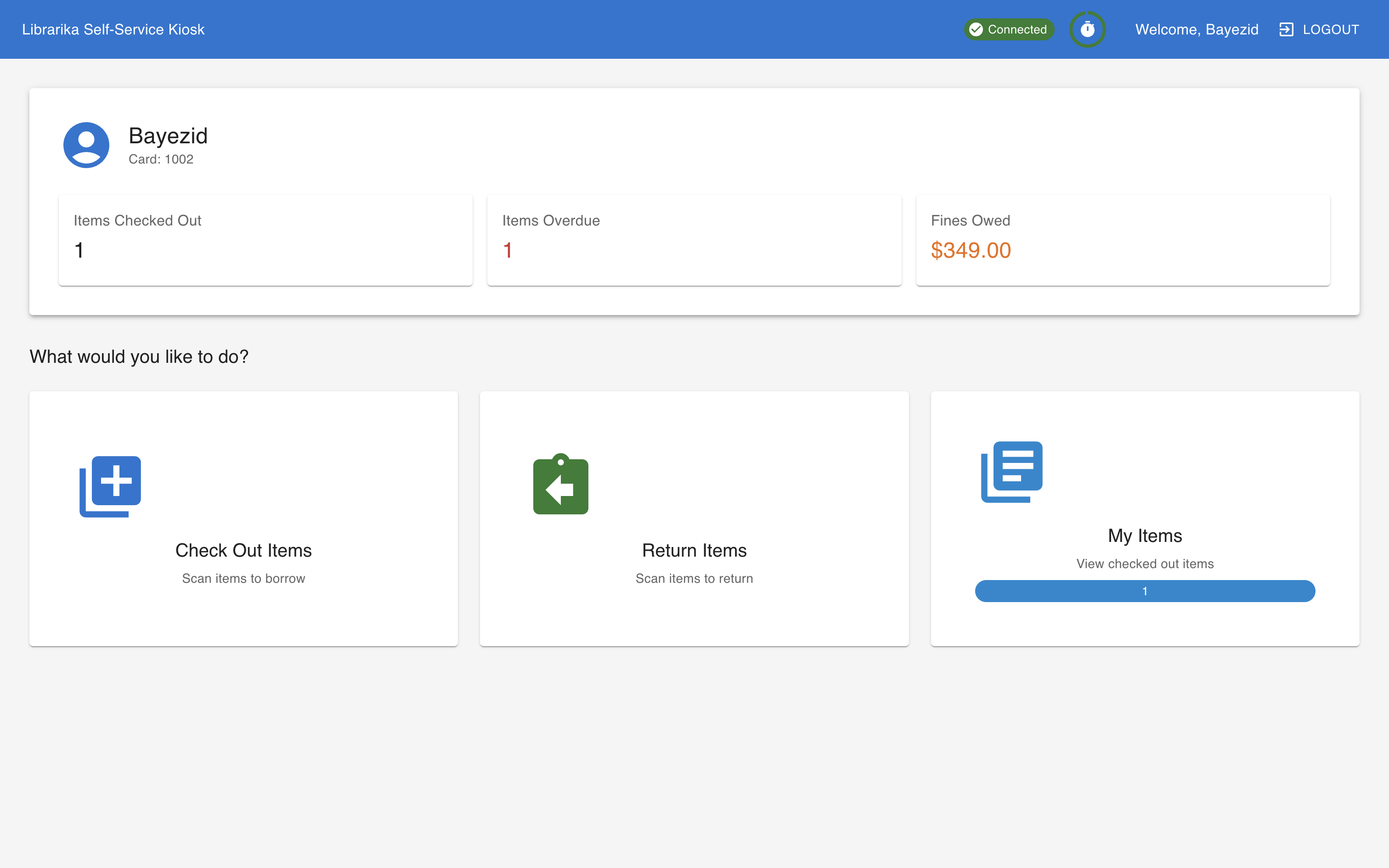
Patron Dashboard
Account overview with checkouts, overdues, and quick actions.
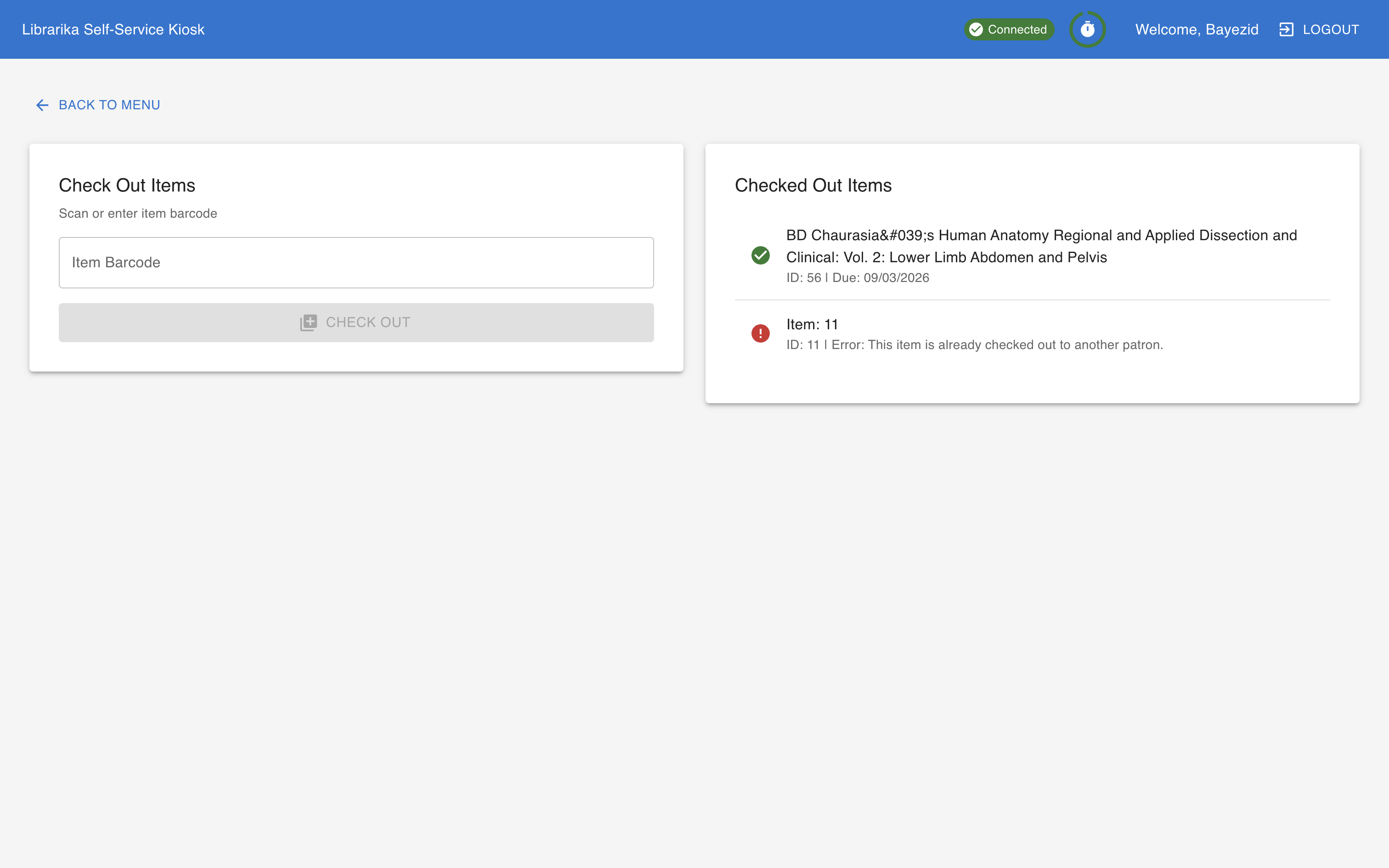
Self-Checkout
Scan items one by one with instant confirmation and due dates.
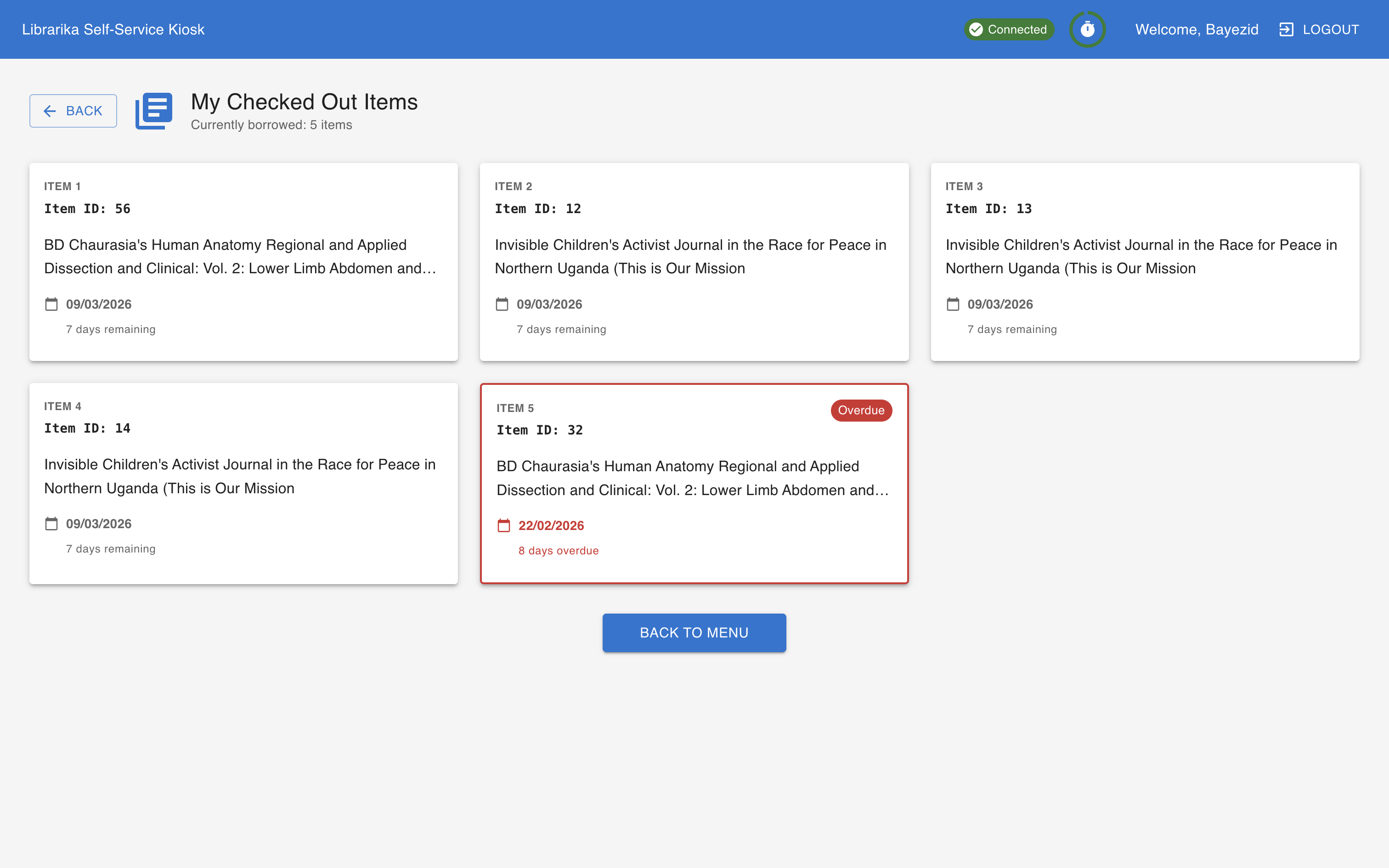
My Items
View all checked-out items with due dates and overdue status.
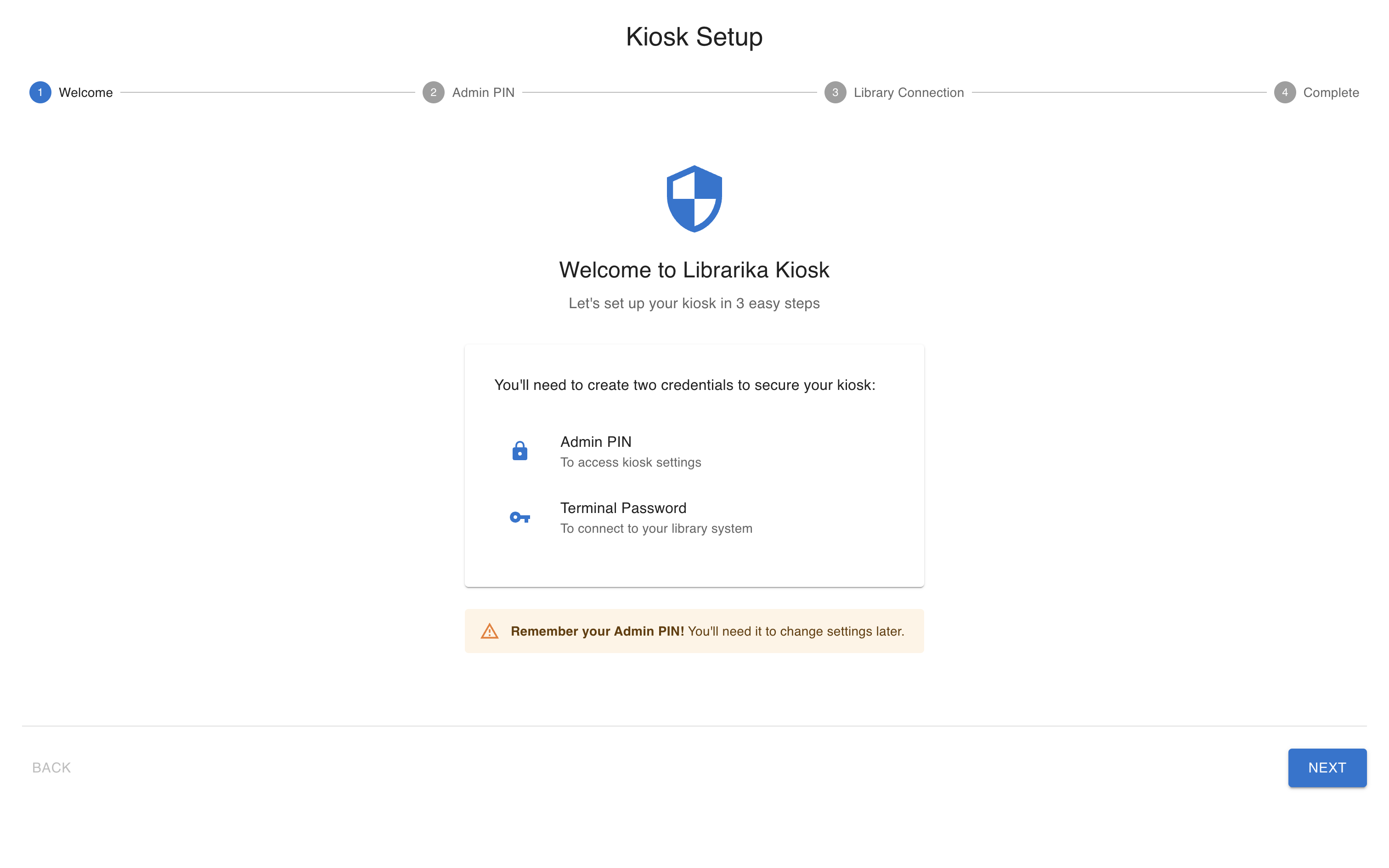
First-Run Setup
Guided setup wizard to configure SIP2 connection on first launch.
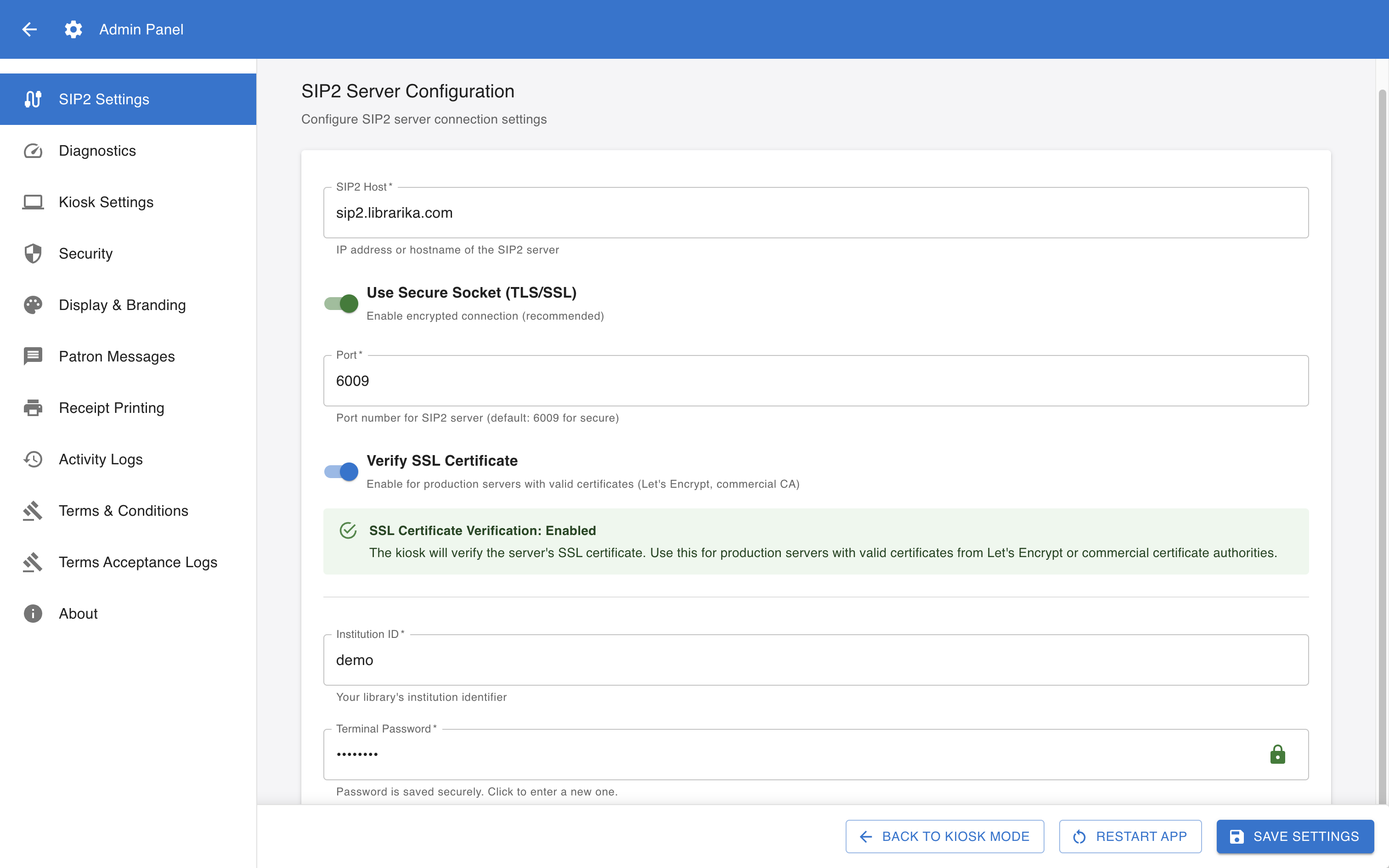
Admin Configuration
Customize branding, timeouts, receipts, and SIP2 settings.
The patron experience in four steps
Simple enough for any patron to use without training.
Patron scans their library card barcode or types the card number manually.
Current checkouts, overdues, and fines are displayed. Patron chooses what to do.
Scan each item to check out or return. Instant confirmation with due date shown.
Patron logs out or the session ends automatically after inactivity. All done.
Download Librarika Kiosk
Available for Windows, macOS, and Linux. Free to download; a Librarika SIP2 account is required to use the software.
System Requirements
| Minimum | Recommended | |
|---|---|---|
| CPU | Dual-core 1.6 GHz | Quad-core 2.0 GHz |
| RAM | 2 GB | 4 GB |
| Storage | 500 MB | 1 GB |
| Display | 1024 × 768 | 1920 × 1080 touchscreen |
| Network | 10 Mbps | 100 Mbps (wired) |
| OS | Windows 10+, macOS 11+, Ubuntu 20.04+ (or equivalent) | |
What to Know Before You Deploy
- Barcode scanner works via USB HID (keyboard emulation). No driver installation needed.
- Receipt printing works with system printers including POS and serial printers. No additional libraries required.
- Language translations are community-contributed and may not cover all interface strings.
- This is a beta release. You may encounter bugs. Please report them to our support team.
- No RFID security gate support. RFID security is not part of the SIP2 protocol and requires a dedicated third-party RFID terminal, as per industry standard.
- No offline mode. A live network connection to the SIP2 server is required at all times.
- Receipt printing depends on how your system printer is configured. Not all printer setups are guaranteed to work.
- Physical security, surveillance cameras, barcode fraud detection, and other anti-theft measures are out of scope. This software is designed for automation only.
- Must be deployed in a secured setup with a secondary fraud prevention system in place (e.g., RFID security gates, CCTV, staff oversight).
Barcode Scanner Setup
Most USB barcode scanners work immediately with no configuration. They appear to the computer as a keyboard — when a barcode is scanned, the number is typed into the active input field.
- Connect the scanner via USB. No drivers or software to install.
- Open a text editor and scan a barcode to confirm it types correctly.
- Make sure your scanner is set to add an “Enter” suffix after each scan.
- The scanner must be in USB HID keyboard mode (standard on most scanners).
Public Deployment Tips
For a locked-down public kiosk deployment, follow these steps.
- Enable kiosk mode in the settings. This activates fullscreen and disables keyboard shortcuts.
- Set the auto-logout timer to a sensible value (3–5 minutes is typical).
- Use a wired network connection for reliability. Wi-Fi can drop.
- Physically secure the keyboard and mouse if the device is accessible to the public.
- Use a VPN or firewall rule to restrict the device's access to only the SIP2 server.
Can I run multiple kiosks?
Yes. Install the software on as many computers as you need. Each kiosk connects to the same SIP2 server independently.
Does it work offline?
No. A live connection to the SIP2 server is required for all operations.
Can I use a touchscreen?
Yes. The interface is designed with touch-friendly buttons. A 1080p touchscreen monitor is recommended.
Is RFID supported?
Not in this release. Only barcode scanning is currently supported.
What SIP2 server does this connect to?
It is designed for the Librarika SIP2 Service. It may work with other SIP2 servers but this is not tested.
Where do I get a SIP2 account?
Contact us. SIP2 access is a paid add-on to your Librarika subscription.
Ready to set up your self-service kiosk?
Download the beta software and contact us to get your SIP2 account configured. We will help you get your first kiosk running.
Download Now Contact SupportBeta Software Notice: This software is provided "AS IS" without warranty of any kind. Librarika makes no representations or warranties — express or implied — regarding fitness for a particular purpose, merchantability, or reliability of this software. Use in production is at your own risk.
A separate Librarika SIP2 account and license is required. Contact us for SIP2 licensing and pricing. This application may work with other SIP2-compliant servers, but compatibility is not tested or officially supported.
Physical security, surveillance, fraud prevention, and RFID security gates are outside the scope of this software. It must be deployed alongside appropriate secondary fraud prevention measures.